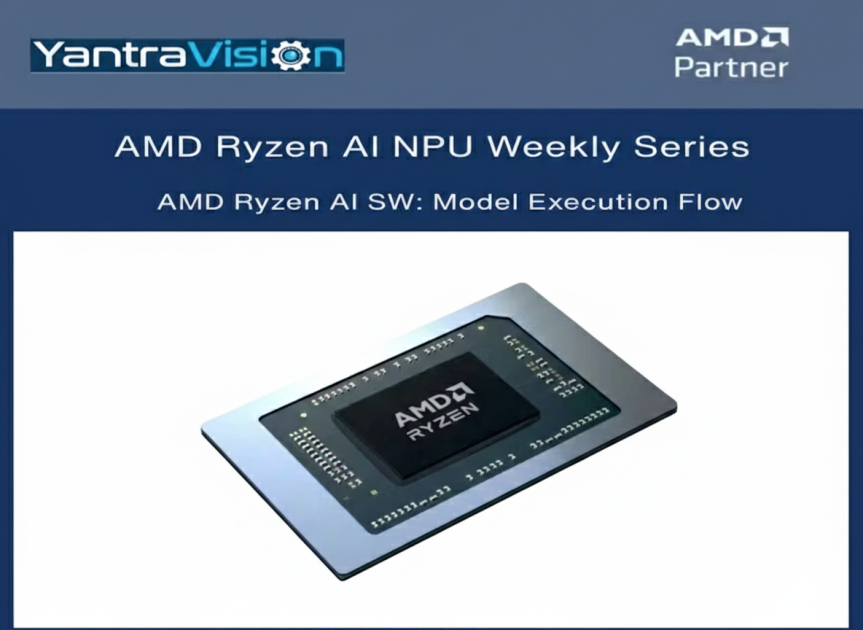

How to Run AI Models on AMD Ryzen AI Systems
If you want to run artificial intelligence models locally on a Windows PC with an AMD Ryzen AI processor, the AMD Ryzen AI software stack provides the tools you need. This guide explains the complete workflow, from installing the necessary software to executing a model on the dedicated Neural Processing Unit (NPU) included in supported Ryzen CPUs.
Why Local AI Execution Matters
Many AI applications depend on cloud services, but modern Ryzen AI processors include a built-in NPU that can accelerate neural network workloads directly on your device. Using the AMD software stack lets you take advantage of this hardware so models run faster and more efficiently without sending data off your machine.
Step 1 — System Preparation
Before installing anything, make sure your system meets these requirements:
-
A PC or laptop with an AMD Ryzen AI processor that has an integrated NPU
-
Windows 11 (64-bit)
-
Visual Studio 2022 with C++ development tools
-
A modern version of CMake (3.26 or later)
-
Miniconda for Python environment management
These components are needed to build and run the examples and tools provided by the Ryzen AI software.
Step 2 — Installing the AMD AI Software
-
Install the NPU Driver
First, download and install the AMD Ryzen AI NPU driver. This allows Windows to recognize the neural processor. After installation, you should see the NPU listed in Device Manager under “Neural Processors.” -
Install the Ryzen AI Software Stack
Run the official installer for the Ryzen AI software. During installation, the software will:-
Set up a Conda environment containing all the required Python libraries
-
Install components such as ONNX Runtime, quantization tools, and execution providers
-
Configure the system so you can compile and run AI workloads
-
The installer handles most of the configuration automatically, but make sure you install all optional components if you plan to develop or run models.

Step 3 — Confirming Hardware Setup
After installation, open Task Manager and check the Performance tab. You should see a section for the NPU. This indicates that the driver is installed correctly and that the system is ready to run AI workloads.
Step 4 — Running an Example AI Model
To verify that everything is working, you can run a sample neural network model. Here is a typical workflow:
-
Obtain a Model
Download an ONNX model that has been quantized to use 8-bit integer precision. Quantized models run faster and are suitable for execution on the NPU. -
Activate the Conda Environment
Open a command prompt and activate the environment created by the Ryzen AI installer:conda activate <environment_name> -
Run Inference on the CPU
As a baseline, run the model using the CPU:python eval_onnx.py --onnx_model mobilenetv2_int8.onnx --data_dir data/imagenet-mini/ -
Run Inference on the NPU
To use the NPU, add the appropriate flag when running the script:python eval_onnx.py --onnx_model mobilenetv2_int8.onnx --data_dir data/imagenet-mini/ --ipu
You should observe better performance when the model runs on the NPU compared with the CPU.

What This Setup Provides
By following these steps, you will have:
-
Installed the AMD AI software stack and NPU drivers
-
Set up a Python development environment that supports neural network execution
-
Run an example model both on the CPU and on the dedicated neural processor
This creates a foundation for experimenting with and deploying your own AI models on AMD Ryzen AI enabled systems.
If you want, I can expand this into a more detailed tutorial with command explanations or help you set up your own model.

No comments yet. Be the first to comment!